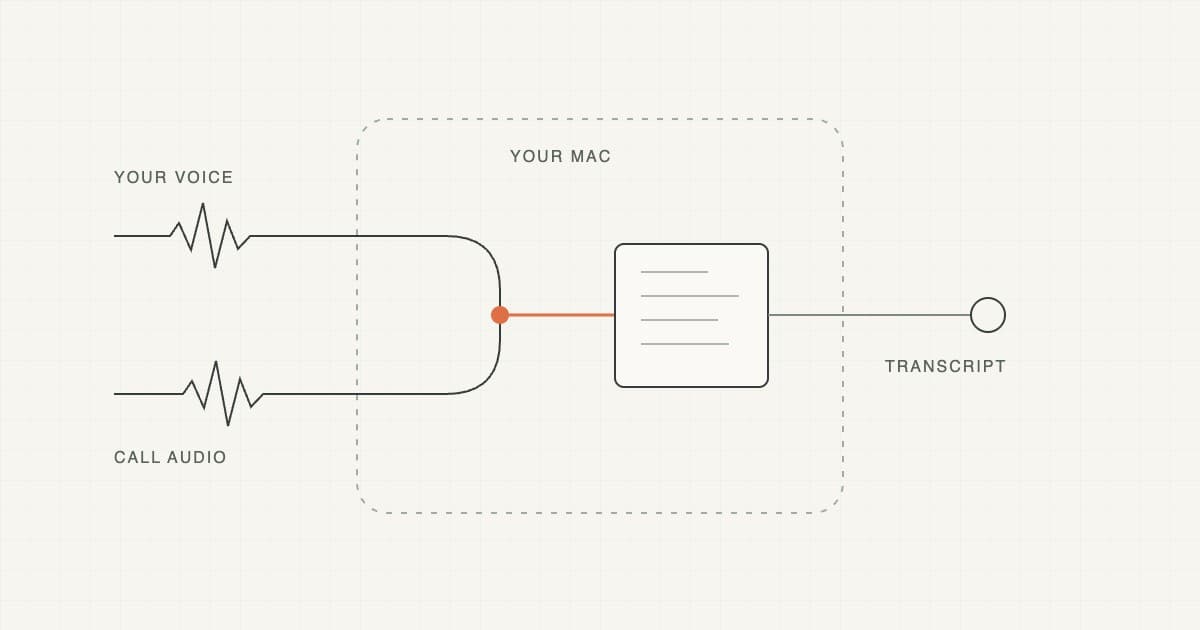
You want a record of the conversation, but you do not want another participant joining the call. A desktop meeting recorder can capture audio from your Mac while the meeting stays in its usual app.
The useful question is whether the recorder can hear the conversation you need. A transcript that misses the customer’s side of a call is a poor starting point for a follow-up.
The short answer
Bot-free meeting notes use capture on your computer instead of a separate meeting participant. For a remote call, a recorder usually needs your microphone for your voice and system audio for the people you hear through the Mac.
Before relying on it, check both audio sources, tell participants about the recording, and check the processing settings. “No bot” describes how the audio is captured. It does not establish where transcription or summarization happens.
What bot-free capture means
Picture a call while wearing headphones. Your microphone hears you. The other person’s voice plays through your headphones, so a microphone-only recording may not include it clearly.
System-audio capture provides a route for that other side of the conversation. The recorder works from your Mac rather than entering the meeting as an extra attendee.
That distinction also explains a limit: the recorder depends on the audio available to your computer. Do not expect it to capture a meeting while your Mac is disconnected or absent.
There are several ways to keep a meeting record:
| Method | Useful when | Check first |
|---|---|---|
| Manual notes | You need a few decisions or recording is inappropriate | Who will capture and confirm the outcomes |
| Meeting-platform recording or notes | Your team already uses an approved built-in workflow | Availability, participant notice and where the result is shared |
| Desktop capture without a bot | You want a record from the call running on your Mac | Microphone, system audio and processing settings |
| A meeting bot | Your team has chosen a participant-based recording service | Admission, disclosure and the service’s data handling |
Choose the method your team can understand and use consistently.
Check both sides before the call
Use a short test conversation with someone who knows you are recording. These are setup checks, not a guarantee of compatibility with every meeting app.
- Use the real setup. Open the meeting app and connect the headphones or microphone you plan to use.
- Check microphone access. Confirm the recorder is using the intended input and shows activity when you speak.
- Check system-audio access. On current macOS, Apple documents this under System Settings → Privacy & Security → Screen & System Audio Recording. Labels can vary with the macOS version. Apple’s permission guide
- Take turns speaking. Include a name, a number and a short sentence from each person.
- Stop and inspect the saved result. Confirm both contributions appear. If the tool saves audio, listen to the relevant section too.
A moving microphone meter proves only that a microphone is receiving sound. Check the other side separately.
If you change headphones, reconnect a dock or switch the call to another device, check capture again. If you cannot recover the missing channel, take manual notes and mark the record as incomplete.
Keep capture and processing separate
Follow the information through four steps: capture, transcription, summary and storage.
A tool may capture audio on the Mac and use a cloud service to turn it into text. Another may transcribe on the device and send selected text to a cloud model for a summary. The absence of a bot does not settle either question.
Check these settings before the meeting:
- Which audio sources will be captured?
- Which model or service will transcribe them?
- Does generating a summary send text to another service?
- What gets saved, synced or shared afterward?
Apple’s recording-permission guidance also points out that information collected by third-party apps is governed by their own terms and privacy policies. A macOS permission grants access; it does not describe every later use of the data.
Make recording visible to participants and follow the applicable meeting and organizational requirements. If recording is not appropriate, use manual notes and confirm the written recap.
Choose the record your meeting needs
For a brief check-in, a few agreed notes may be enough. For a customer interview, you may need a fuller transcript so you can revisit exact wording. A formal meeting may require your organization’s established minutes process.
Cue Meetings captures from the Mac without adding a bot and keeps a transcript alongside your own notes. Its public page describes on-device and cloud transcription choices. Meetings remains described as beta in our meeting-notes guide; check the available controls in your installed version.
Keep the distinction between audio channels and individual people clear. A label for “the other side” does not necessarily identify every remote speaker. Verify the person before turning a sentence into an assigned task.
After the call, use the transcript to check decisions, names and dates. Keep your own observations separate from what was actually said. A useful follow-up makes uncertainty visible instead of filling gaps with confident prose.
If you only need to speak your own recap afterward, ordinary Mac dictation may be enough. That records your recollection, so label it accordingly.
Frequently asked questions
Can I take meeting notes without a bot?
Yes. You can write notes manually, use an available meeting-platform feature, or use a desktop tool that captures the audio on your computer. Each method has different setup and sharing requirements.
Does bot-free mean the recording stays on my Mac?
No. Check transcription, summarization, storage and sharing separately. Capture can happen locally while a later step uses a cloud service.
Why does the transcript include me but miss everyone else?
One possible cause is that the recorder has microphone input but no working system-audio input. Check permissions, the selected devices and a short saved test before the next call.
Will headphones prevent recording the other person?
Headphones change what your microphone hears. A supported system-audio capture path can record the audio playing on the Mac separately, but you should test your actual setup.
Is a desktop recorder a way to record unnoticed?
It should not be used that way. Tell participants about recording and use a method appropriate to the meeting. No extra attendee is a capture design, not a substitute for disclosure.
Sources
Checked September 29, 2026.
- Apple: control screen and system-audio recording access.
- Cue Meetings: capture, notes and transcription choices.
- Cue: AI meeting notes on Mac.
Explore Cue Meetings if you want to keep a conversation and your working notes together. Start with a short test call before relying on a new recording setup.