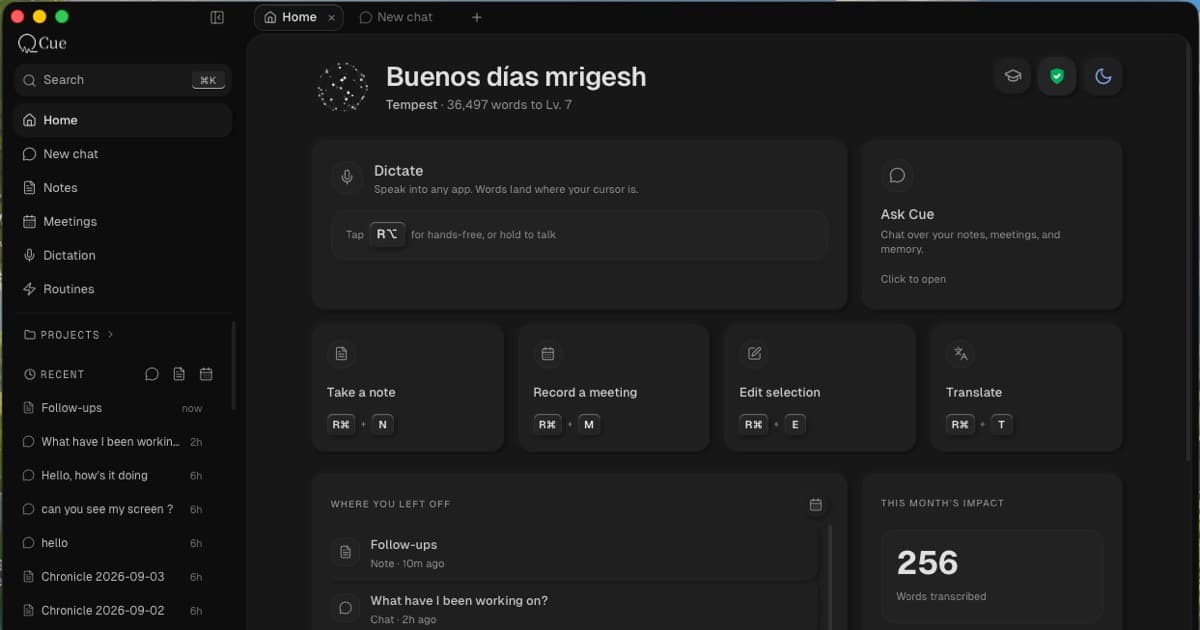
Today, I am introducing Cue as the workspace I always meant to build.
When I started building Cue, dictation was always step one. The larger idea was to make voice a natural way to work with your computer—and to make everything you capture useful afterward.
Cue brings that idea together in one workspace on your Mac.
You can dictate into any app, capture a meeting, speak or write a note, ask questions across what you have saved, and edit text where you are already working. These are not meant to be five disconnected features. They are parts of one loop:
Capture something. Keep it in a form you own. Understand it later. Turn it into the next piece of work.
The short answer
Cue is a private, voice-first AI workspace for Mac.
The starting point is free, unlimited on-device dictation. You can speak into the text field you already have open, and Cue turns that speech into editable text on your Mac.
But useful work does not end when the words appear.
A meeting can become a transcript, personal notes, and follow-ups. A spoken thought can become a Markdown note you can revisit. A group of notes can become the context for a question. A rough paragraph can be edited in place without moving it into another app.
That is the larger idea behind Cue: dictation remains the easiest way in, but the product now gives what you say somewhere useful to go.
Dictation was step one
Voice is a fast way to get a thought out of your head. It is especially useful when you already know what you want to say but typing becomes the slow part.
That is why the first promise is simple: on-device dictation is free and unlimited. You do not have to pay to use Cue's on-device speech models on your Mac.
If you are paying around $15 every month only for dictation, try Cue's free on-device mode. If it covers what you need, that may be one subscription you no longer need.
I do not think voice input should live inside one special editor. It should work like a keyboard: available wherever the cursor is, easy to start, easy to stop, and always producing text you can inspect before you send it.
But better input creates a new question.
What happens to the useful things you say after the text is inserted?
A project idea dictated into a temporary chat can disappear in the scroll. A meeting transcript can sit unopened after the call. A decision can become buried inside a long document. Dictation helps you produce the words, but it does not by itself give those words a durable place in your work.
Cue is my answer to that second problem.
The workspace around your voice
The workspace has five connected parts.
Dictate anywhere
Cue Dictation turns speech into editable text in the app where you are already working. Use an on-device model when you want local processing, or choose a cloud model when you want it. The important part is that you decide how the speech is processed.
Dictation is still the quickest way to begin. It is no longer the end of the product.
Capture meetings without adding a bot
Cue Meetings captures the conversation on your Mac, keeps the transcript and your own notes together, and helps you return to the decisions and follow-ups later.
There is no bot joining the call as another participant. The meeting stays connected to the rest of your Cue workspace instead of becoming another isolated recording.
Meetings is still a beta feature. I am keeping that label because capture quality, speaker separation, and the path from transcript to useful outcome all need to earn trust in real work.
Give your thoughts a home
Cue Notes lets you speak or write into ordinary Markdown files stored in a folder you control.
You can organize those notes, open them elsewhere, search them with other tools, back them up in the way you choose, and take them with you if you stop using Cue. The file is the durable thing; the app is one way to work with it.
Ask across what you have captured
Cue Agent can use your notes and meetings as context for a question. Its answer can show the sources it used, so you can move from the answer back to the material behind it.
This is not about making an AI remember everything you have ever written. The useful version is selective: find the relevant material, keep its source visible, and use it for the task in front of you.
You can also connect compatible tools such as Claude, Cursor, and Codex to your Cue files through Cue MCP. The point is not to trap your context inside one assistant. It is to make the context you choose useful in the tool you choose.
Edit where you are already working
With Edit Mode, you select text in another Mac app, tell Cue what you want changed, and review the result where that text already lives.
You might say, “Make this shorter,” “Turn this into action items,” or “Keep the meaning but make it sound less formal.” You do not need to move the paragraph into a separate chat, explain the surrounding task again, and paste it back.
One connected workflow
The easiest way to understand Cue is not through a feature list. It is through one ordinary piece of work.
Imagine you have a product call.
- You capture the meeting in Cue and write your own notes beside it.
- After the call, you return to the transcript and check what was actually said.
- You keep the important decisions, open questions, and next steps in a project note.
- A week later, you ask Cue what the customer said about onboarding. The answer points back to the relevant note or meeting.
- You use that context to draft the next update.
- In the app where you are sending it, you select the draft and ask Cue to make it clearer.
The value is not that AI wrote a paragraph. The value is that the paragraph can be connected to the conversation, decisions, and notes that came before it.
This pattern works outside meetings too. A spoken idea can become a note. Several notes can become a brief. A brief can become a prompt for Claude or Codex. The result can come back into your files after you review it.
Each step should remain visible. You should know which source informed an answer, which model is being used, and when a proposed change becomes a real one.
Three principles behind Cue
1. Voice as an interface
Speaking should be a normal way to use your computer, not a novelty hidden inside one app.
Sometimes you want literal text. Sometimes you want a selected paragraph changed. Sometimes you want to capture a conversation or ask a question across earlier work. These are different jobs, but voice can be the interface for all of them.
The system should make the current job clear. Dictation should produce text. Editing should show the selected text and proposed change. An agent should show its sources and ask for review before consequential action. Voice is useful when it reduces friction without hiding what the computer is doing.
2. Local-first, not local-only
Cue is designed to keep the durable record on your Mac and process work there when possible. On-device dictation is one concrete example. Local Markdown notes are another.
But “local-first” does not mean pretending the cloud never exists. The foundational local-first software essay from Ink & Switch describes a priority: give people ownership, control, and useful local access while still allowing networked services where they help.
That is the boundary I want Cue to make understandable. Use on-device processing when it fits. Choose cloud AI when you want a stronger model or a cloud capability. Keep the choice visible rather than turning “AI” into one opaque route.
3. Files over apps
Steph Ango—also known as Kepano—describes “File over app” as a philosophy of creating digital files that remain easy to retrieve, read, and control independently of the software that created them.
That idea strongly shaped Cue Notes.
An app can change its pricing, shut down, remove a feature, or simply stop fitting the way you work. Your notes should not disappear with it. Cue therefore keeps notes as ordinary Markdown files in a folder you own.
This is not a claim that every part of Cue is open source or that every AI operation happens offline. It is a narrower, more useful promise: the primary copy of your written knowledge should remain readable and movable without Cue.
What changes for you
If you already use Cue for dictation, you do not need to adopt a complicated new system. Keep using the shortcut you know. When something deserves to last—a decision, idea, meeting, project brief, or useful piece of context—give it a home in the workspace.
If you are new to Cue, start with the free on-device dictation. Use it in the apps where you already type. If it feels natural, then try the rest of the loop one part at a time.
Cue is not trying to replace every writing app, meeting platform, or AI model. It is trying to connect the parts that usually break apart:
- the moment you say something;
- the file where it becomes durable;
- the source that makes it trustworthy;
- the model that helps you work with it;
- and the place where the final work needs to go.
Dictation was the first step. Cue is the workspace around it.
What is still early
Cue is now a larger product than the first version, and I want to be precise about what that means.
- Meetings is beta. It is useful today, but capture and transcript quality can vary with the call, microphone, speakers, and environment.
- AI answers can be wrong. Sources make an answer easier to inspect; they do not guarantee that the interpretation is correct.
- Local-first is not local-only. On-device dictation and local Markdown are available, while cloud models and cloud features are used when you choose them.
- Free dictation does not mean every Cue feature is unlimited and free. On-device dictation is free and unlimited. Cloud AI and broader workspace features can have plan limits or use credits.
- A file you own still needs care. Backups, naming, and deciding what should be kept remain your responsibility.
These boundaries are not footnotes. They are part of the product I want Cue to become: capable without becoming mysterious, and useful without taking ownership away from you.
Over the coming days, I will share short videos showing each part of Cue and how they work together.
FAQ
Is Cue only a dictation app?
No. Dictation is the entry point. Cue also brings meetings, Markdown notes, sourced questions across your workspace, connections to compatible AI tools, and in-place editing together on your Mac.
Is Cue dictation really free and unlimited?
Yes, for on-device dictation. Cue's on-device speech models can be used without a monthly dictation allowance. Cloud processing and other workspace capabilities can have plan limits or use credits.
Does all of my Cue data stay on my Mac?
Your Cue notes are ordinary local Markdown files, and Cue offers on-device dictation. If you choose a cloud model or cloud feature, the selected input must be sent to that provider for processing. Local-first means the local option and the boundary are meaningful; it does not mean everything is always offline.
Is Cue Meetings finished?
No. Meetings is currently beta. You should review important transcripts, decisions, and follow-ups against the recording and your own notes.
Can I open Cue notes without Cue?
Yes. They are Markdown files in a folder you control, so you can open them in another compatible editor or use them with other tools.
Does Cue automatically act on my computer?
Cue focuses on visible, user-initiated workflows. Dictation inserts editable text, Edit Mode changes the text you selected, and Agent answers show their supporting sources. Consequential actions should remain inspectable and reviewable.
If you already use Cue for dictation, I would love for you to try the new workspace. If you are new, start with free on-device dictation.
Download Cue for Mac or learn more at cuevoice.ai.