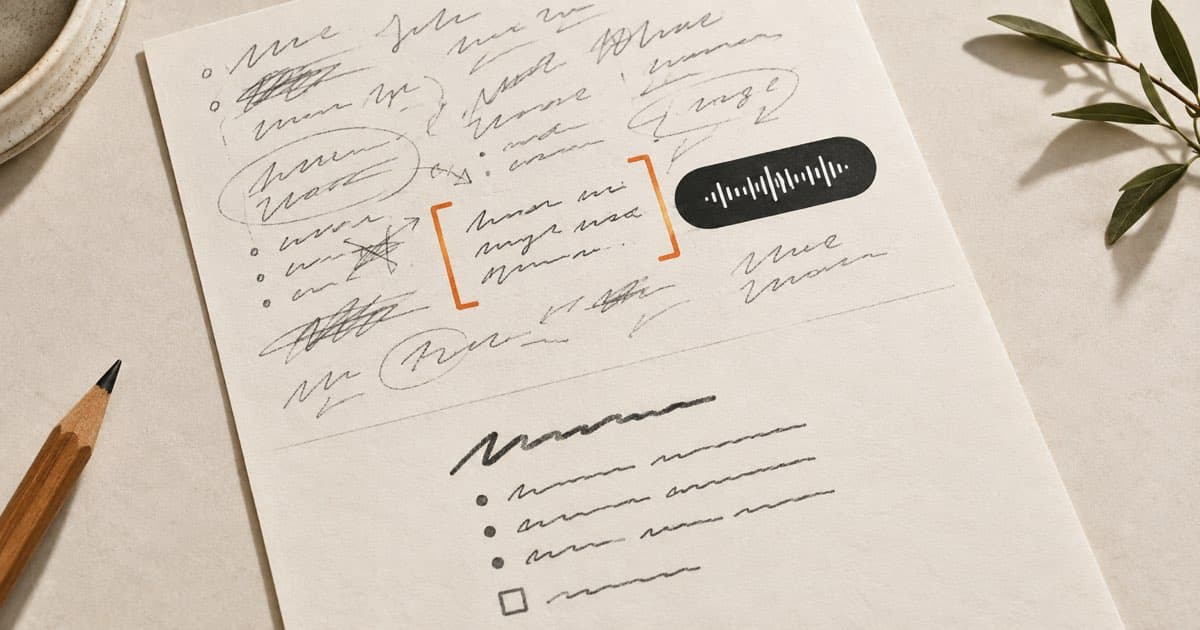
A brain dump works best when you do not interrupt it to make it tidy.
Start Cue. Keep speaking while the thought is moving. Let the first pass capture the material. Then select the part that matters and tell Cue Edit Mode what you want it to become.
Capture and editing are two different jobs. Doing them one after the other is usually easier than trying to think, organize, and polish every sentence at the same time.
The short answer
Use four steps:
- Capture without organizing. Start once and keep talking until the thought is out.
- Name the result. Decide whether you need an observation, decision, plan, question, update, or action list.
- Select and direct the rewrite. Highlight the useful material, open Cue Edit Mode, then choose a preset or speak a specific instruction.
- Review and keep deliberately. Check the meaning and exact details, then save, move, or discard the result.
Voice gets the material out. AI can help shape it. You still decide what the note means and whether it is worth keeping.
| If the brain dump contains | Ask for |
|---|---|
| Something you noticed | “Turn this into: what happened, why it matters, and what is still unknown.” |
| A choice you made | “Rewrite this as a decision. Keep the reason and constraints.” |
| Work that must happen | “Extract action items. Do not invent owners or deadlines.” |
| Several mixed ideas | “Split this into separate sections with short headings.” |
| A message for someone | “Rewrite this as a concise project update in my tone.” |
| Repetition without future value | Nothing. Let it go. |
Capture without interrupting yourself
Open the place where the thought belongs. That can be Apple Notes, Obsidian, a document, a project file, or Cue Notes.
Start dictation and speak at your normal pace. Do not stop after every sentence to repair grammar or decide on headings. Keep dropping the thought until you reach the end.
A useful brain dump might sound like this:
We keep losing the first ten minutes of design reviews because nobody knows whether we are choosing a direction or checking the implementation. Maybe the invitation should say what decision we need and link the latest version. We should probably make one person responsible for that, but I do not know who yet. Also, the review on Thursday needs the new mobile flow.
It is repetitive. It changes direction. That is fine. The capture has done its job because the useful context is now visible.
Cue can clean up obvious speech friction and format the first pass, depending on the transcription and cleanup settings you choose. But the first pass does not need to become the final note. Do not ask capture mode to decide the structure while you are still forming the thought.
If a name, date, number, URL, or technical term matters, say it carefully and plan to check it later.
Give the AI a clear job
Read the capture once and ask: What should this become?
Do not begin with “make this better.” Better is too vague.
Give the rewrite a job and a shape:
- Observation: what happened, the evidence, and the consequence.
- Decision: what was chosen, why, and what constraint remains.
- Plan: the next few moves in order.
- Question: the context and the unresolved issue.
- Update: what changed, what matters now, and what happens next.
- Action list: only the commitments actually present in the capture.
If the dump contains three subjects, either select one subject at a time or tell the AI to split them. A note titled “Design review purpose” is easier to find and reuse than one titled “Random thoughts Tuesday.”
This step also prevents a common mistake: turning every sentence into a task. A concern may need more evidence. A possibility may not be a commitment. A person mentioned in the transcript is not automatically an owner.
Select the text and speak the rewrite
In Cue, the practical workflow is:
- Capture the thought in the app where you are already working.
- Select the passage you want to change.
- Press your configured Edit Mode shortcut.
- Choose a preset, or speak your own instruction.
- Read the result before you keep it.
Cue Edit Mode is designed to rewrite selected text from a saved preset or a free-form voice instruction. The shortcut is configurable, so this guide does not assume one universal key. Cue’s public release notes document the select, instruct, and rewrite flow.
For the design-review brain dump, you could select the whole passage and say:
Turn this into three sections: problem, proposed change, and open question. Keep Thursday’s mobile-flow reminder separate. Do not invent an owner or deadline.
The result could become:
Design reviews need a stated decision
Problem: We lose about ten minutes at the start because the group does not know whether it is choosing a direction or reviewing implementation.
Proposed change: Put the decision required and a link to the current version in the invitation.
Open question: Who should own the invitation template?
Separate reminder: The Thursday review needs the new mobile flow.
That is more useful than a generic summary because the instruction defines the structure and preserves the uncertainty.
Other commands worth trying:
- “Rewrite this in plain language. Keep every number and name.”
- “Shorten this by half, but keep the caveat in the last paragraph.”
- “Turn this into a title and three bullet points.”
- “Extract the action items. If an owner or deadline was not stated, do not add one.”
- “Separate facts, assumptions, and questions.”
- “Rewrite this as a polite email without making it sound formal.”
The stronger the instruction, the less the model has to guess.
Review the transformation
An AI rewrite can sound clean and still be wrong.
Compare the result with what you meant, especially when the rewrite compresses several ideas. Check:
- Names and unfamiliar terms
- Dates, times, quantities, and prices
- URLs, file paths, and code
- Owners, deadlines, and commitments
- Whether a possibility became a decision
- Whether uncertainty disappeared
- Whether two separate subjects were merged
Selection is also a form of control. Select only the material you want transformed. When one passage contains two unrelated ideas, edit them separately or explicitly ask for separate sections.
The goal is not to preserve every word. It is to preserve the meaning while making the note easier to use.
Keep deliberately
Not every dictation should become a permanent note.
Keep the result when it contains a decision, constraint, customer signal, reusable explanation, or question you intend to revisit. Move a clear action into the task system where you will actually see it. Discard setup, repetition, and passing thoughts that no longer matter.
You may want to keep the raw capture until the shaped note is verified. After that:
- Keep it beside the note when exact wording matters.
- Archive it when it may be useful but would clutter the working page.
- Delete it when the reviewed note fully carries the meaning and no audit trail is needed.
The goal is not a larger archive. It is less ambiguity the next time you return.
Where Cue fits
Cue Dictation can place captured text into ordinary Mac text fields, so you can start where the work already lives. Use one uninterrupted capture pass to get the thought down. For setup and a wider comparison with macOS Dictation, start with the free voice-to-text for Mac guide.
Cue Edit Mode handles the second job: select existing text, open Edit Mode with your configured shortcut, then pick a rewrite preset or speak your own instruction. AI can structure, shorten, simplify, polish, or extract action items from the selected passage. You remain responsible for reviewing the result.
Cue Notes stores notes as readable Markdown files in a folder you own. That makes the reviewed note usable outside one interface.
Cue offers on-device and cloud transcription choices. “Local” applies when you select an on-device mode; do not assume every transcription or AI-editing path is local. Meetings and Agent/Chat are not required for this workflow.
If you later want a compatible agent to work with selected Cue-folder context, Cue MCP is an optional, permissioned connection. It is not automatic filing, and it does not replace the review step.
The broader principle is simple: voice should work like an input layer. First use it to capture. Then use it again to direct the edit.
When voice or AI editing is the wrong tool
Do not dictate sensitive material where other people can hear you. Check the active transcription and model settings before speaking work that should stay on the Mac.
Type or paste exact syntax, commands, URLs, identifiers, and long numbers. Voice can explain what code should do, but it is a poor place to trust every character.
Do not use an AI rewrite when the exact original wording must be preserved. Keep quotations, contractual language, evidence, and source material intact.
Voice is also less useful when you do not yet have the information needed to form a view. Read, think, and return when there is a thought worth capturing.
Finally, consider the room and your own comfort. Noise, fatigue, speech differences, and the social cost of talking aloud can make typing the better input method.
Frequently asked questions
Do I have to organize the thought while I am speaking?
No. Start the capture and finish the thought. Organize it afterward, when you can see the whole thing.
Is Cue Edit Mode the same as dictation?
No. Dictation captures new text from speech. Edit Mode transforms text you have selected, using a preset or a spoken instruction.
What should I say to Edit Mode?
Name the output, the structure, and any constraint. For example: “Turn this into a short project update with three sections. Keep the uncertainty and do not invent deadlines.”
Should I let AI rewrite the whole note?
Select the smallest useful passage. Use AI to propose structure, remove obvious repetition, or surface actions. Check the result yourself, especially names, numbers, commitments, and conclusions.
Do I need a special brain-dump app?
No. You need a reliable capture surface and a place where the reviewed note belongs. Use the notes app, document, or project system you already return to.
Should I keep the raw transcript?
Keep it until you verify the shaped note. After that, retain it when exact wording or an audit trail matters; otherwise archive or remove it.
Can an agent use the note later?
Yes, if you deliberately give that agent access through a supported workflow. In Cue, MCP is an optional, permissioned connection to selected context in the Cue folder. Review access and the source material before relying on the result.
Sources
Apple and public Cue sources rechecked September 9, 2026.
- Apple: Dictate messages and documents on Mac
- Apple: Get started with Notes on Mac
- Cue Dictation
- Cue Notes
- Cue MCP
- Cue release notes: Edit With Your Voice
Try it with one unfinished thought
Download Cue for Mac, capture one unfinished thought without stopping to organize it, then select the useful part and tell Cue exactly how you want it rewritten.